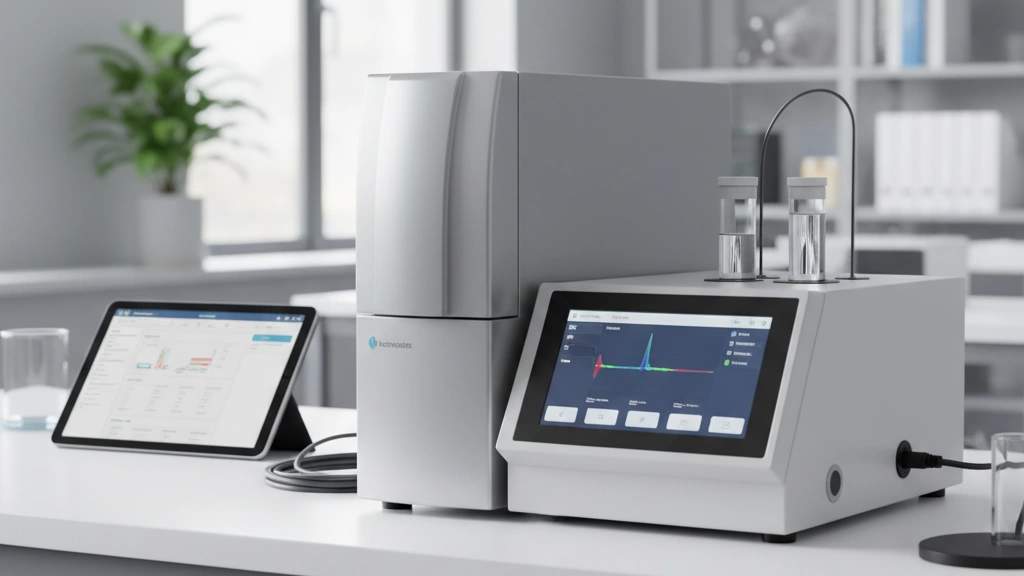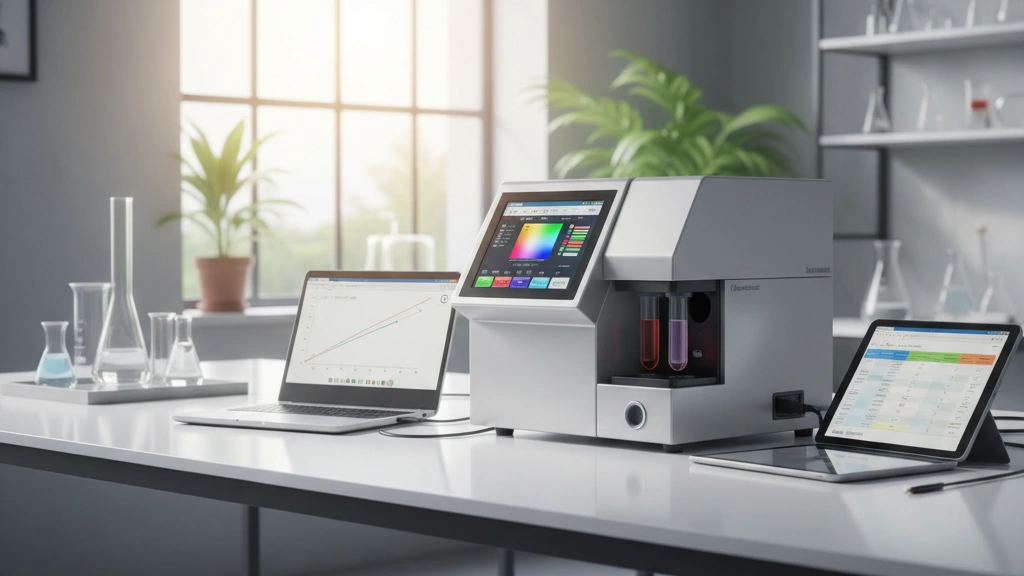
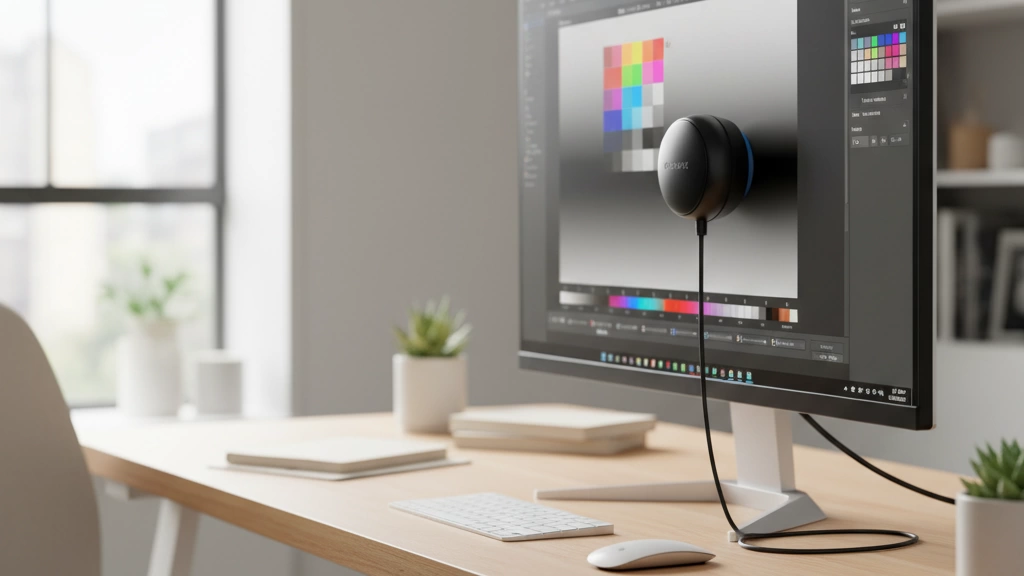
If you’re serious about accurate monitor calibration, you already know that relying on software alone just won’t cut it. Enter the colorimeter for monitor calibration — the essential hardware tool that measures your screen’s true color output, ensuring your images and videos look exactly as intended. Whether you’re a photographer, designer, or video editor, picking the right colorimeter can make the difference between guesswork and precision color matching. In this guide, we’ll cut through the noise, break down why a dedicated colorimeter matters, and help you find the perfect model—from trusted brands like Datacolor and X-Rite to high-end contenders like Jingce—for your workflow and budget. Ready to nail perfect color every time? Let’s get into it.
Why You Actually Need a Hardware Colorimeter (Not Just Software)
If you’ve ever tried to adjust your monitor’s colors using just your eyes or built-in operating system tools, you might have noticed how tricky it is to get truly accurate results. Here’s the deal: human vision is subjective, room lighting changes, and built-in calibrations simply cannot match the precision a hardware colorimeter delivers.
The Science Behind Monitor Calibration
Accurate monitor calibration involves measuring how your screen reproduces colors and brightness, then creating a profile to correct any deviations from the standard. This process relies on gathering precise spectral data about the light your display emits—information that’s simply beyond what your eyes or software algorithms can achieve.
Limitations of Visual Calibration and OS Tools
- Human eyes vary: What looks “right” to you can differ dramatically under different lighting conditions or compared to another person.
- Software-only tools depend on assumptions and presets, often adjusting colors based on guesswork rather than measurement.
- Operating system calibration utilities (like Windows Color Management or macOS Display Calibration Assistant) don’t measure your display output—they simply handle color profiles, meaning they can’t fix fundamental inaccuracies.
How Colorimeters Measure Spectral Data vs. Simple RGB
Here’s where a hardware colorimeter shines. Unlike general RGB values listed by software, a colorimeter uses built-in filters and sensors to analyze the actual light spectrum your monitor produces—including brightness, color temperature, gamma, and more. This spectral data allows it to create an exact color profile tailored to your specific display’s characteristics.
In short: a hardware colorimeter is the only reliable way to ensure your monitor displays colors faithfully, whether you’re a photographer, designer, or video editor who needs precision that software alone just can’t deliver.
Key Factors to Consider When Buying a Colorimeter
When choosing a colorimeter for monitor calibration, there are several important things to keep in mind to get reliable, accurate results:
-
Supported Display Types
Make sure the colorimeter supports your screen type—whether it’s LCD, LED, OLED, Mini-LED, or QD-OLED. Some devices handle OLED and Mini-LED better, which is crucial for accurate calibration on those newer displays.
-
Accuracy & Repeatability
Look for devices with high accuracy and consistent repeatability. This ensures your monitor’s colors stay true over time and every calibration is reliable.
-
Wide-Gamut & HDR Support
If you work with wide-gamut color spaces like Rec.2020 or Dolby Vision HDR, pick a colorimeter that can measure and profile these environments. This is essential for video editors, photographers, and designers working with high-end content.
-
Measurement Speed & Ambient Light Sensor
Faster measurement speeds save time, especially when profiling multiple devices. Plus, built-in ambient light sensors help account for your room lighting, giving a more realistic calibration that suits your workspace.
-
Software Ecosystem & OS Compatibility
A good colorimeter comes with solid software support that’s compatible with your operating system—Windows, macOS, or both. Check if it integrates well with popular calibration tools and workflows you use.
-
Build Quality, Warranty & Customer Support
Since a colorimeter is an investment, pick a device that’s well-built and backed by a solid warranty. Responsive customer support is handy if you run into issues or need guidance.
Keeping these factors in mind will help you find a colorimeter that matches your display, workflow, and budget while ensuring accurate monitor color calibration every time.
Top Colorimeters in 2025 – Comparison Table
Here’s a quick look at the best colorimeters for monitor calibration in 2025. This table sums up key specs, prices, and who they suit best.
| Model | Display Types Supported | Accuracy & Features | Price Range | Best For |
|---|---|---|---|---|
| Calibrite Display Pro HL / X | LCD, LED, OLED, Mini-LED, QD-OLED | High accuracy, HDR & wide-gamut support, fast readings, ambient light sensor | $400–$500 | Most professionals, photo & video editors |
| Datacolor SpyderX2 Elite | LCD, LED | Good accuracy, fast calibration | $150–$200 | Budget users, casual photographers |
| Jingce JC-Pro Series | LCD, LED, OLED, Mini-LED | Museum-grade spectral engine, OLED uniformity mapping, ultra high accuracy | $800+ | Critical color work, studios, print & film pros |
| X-Rite i1Display Studio | LCD, LED | Accurate for SDR, limited HDR support | $250–$300 | Video editors, casual professionals |
| X-Rite i1Display Pro HL | LCD, LED, OLED, HDR | HDR & wide-gamut, fast measurement | $450–$550 | Video & HDR editors, professionals |
Quick
- Calibrite Display Pro HL / X is the all-rounder with high accuracy and great OS/software support.
- SpyderX2 Elite is the budget pick without major sacrifices on quality.
- Jingce JC-Pro Series leads when it comes to precision and advanced features like spectral data and OLED uniformity.
- X-Rite models are solid for video and HDR, with the Pro HL offering the best HDR handling.
Pick your colorimeter based on your display type, accuracy needs, and workflow.
Best Overall for Most Professionals: Calibrite Display Pro HL / X
If you want a reliable colorimeter for monitor calibration that covers all the bases, the Calibrite Display Pro HL (and its X version) is hard to beat. It’s the successor to the long-loved i1Display Pro, bringing improved accuracy and broader support for new display types like OLED, Mini-LED, and QD-OLED.
Why it’s the top pick:
- Excellent accuracy and repeatability, so color results stay consistent over time
- Supports wide-gamut displays (Rec.2020, DCI-P3) and HDR workflows
- Built-in ambient light sensor helps adjust calibration based on your room’s conditions
- Works smoothly with popular software like Calibrite Studio and even open-source tools like DisplayCAL
- Fast measurements reduce downtime during calibration sessions
- Solid build quality with good customer support for global users
It’s perfect if you’re a photographer, designer, or video editor who demands precise color without fuss. The Display Pro HL balances price and performance, making it the go-to professional display calibrator for both casual users and pros worldwide.
If you want a true hardware colorimeter that caters to modern monitors and vivid HDR content, Calibrite’s latest model remains a reliable standard for 2025.
Best Budget Option: Datacolor SpyderX2 Elite
If you’re looking for a reliable colorimeter for monitor calibration without breaking the bank, the Datacolor SpyderX2 Elite is a strong choice. It offers solid performance for a fraction of the price of high-end models, making it ideal for photographers, designers, and hobbyists who want accurate display color calibration on a budget.
Why Choose SpyderX2 Elite?
- Fast, easy measurements: Thanks to its improved sensor and faster lens technology, the SpyderX2 Elite completes screen profiling quickly, helping you get calibrated and back to work.
- Good support for LCD, LED, and OLED screens: It covers most of today’s common display types, including wide-gamut displays, so you can trust it with your modern monitor.
- Built-in ambient light sensor: This helps optimize display settings based on your room’s lighting conditions, which improves overall color accuracy throughout the day.
- User-friendly software: The SpyderX software is straightforward and offers preset targets along with custom calibration options for gamma and white point settings.
- Works on Windows and macOS: Whether you’re on a Windows laptop or a MacBook Pro, SpyderX2 Elite plays well with your OS, making it versatile for mixed workspace setups.
What You’re Getting
While it may not have all the pro-level measurement speed or spectral data of pricier colorimeters, the Datacolor SpyderX2 Elite still delivers consistent results in day-to-day color accuracy tasks. It\’s also supported by a solid community and frequent software updates, which helps keep your monitor calibration tool reliable over time.
If you want accurate monitor color calibration but don’t want to invest hundreds of dollars just yet, the SpyderX2 Elite is a great balance between cost and quality—ideal for getting serious about your display color with minimal fuss.
Best High-End & Emerging Professional Choice: Jingce JC-Pro Series
If you’re after museum-grade accuracy and need critical color precision, the Jingce JC-Pro Series is quickly becoming the go-to for pros. This hardware colorimeter stands out in the monitor calibration tool market, especially for those working in color-critical fields like film grading and high-end print production.
Why Jingce is Gaining Traction
Hollywood colorists and top printing houses are turning to Jingce because of its unmatched accuracy and reliability. It’s not just hype — this device’s spectral engine captures a much wider range of wavelengths than typical RGB colorimeters. That means it measures spectral color data more precisely, ensuring your HDR or wide-gamut displays, including OLEDs, are calibrated as true to life as possible.
Spectral Engine Advantages
Unlike simpler colorimeters that rely just on RGB channels, Jingce’s spectral technology analyzes the full light spectrum emitted by your screen. This provides:
- More accurate color readings across different display types (OLED, QD-OLED, Mini-LED)
- Better profiling for wide color gamuts like Rec.2020 and Dolby Vision HDR
- Improved consistency over time and between devices
OLED Uniformity Mapping
One feature setting Jingce apart is its OLED uniformity mapping. OLED displays often suffer from uneven brightness or color shifts across the screen. Jingce measures and maps these variations, allowing you to create precise profiles that compensate for those irregularities—critical for professionals who rely on pinpoint accuracy on every pixel.
Real-World Case Studies
- A Hollywood post-production house reported improved color matching across multiple OLED screens calibrated with Jingce.
- A top-tier print studio saw more consistent proofing results, reducing costly reprints thanks to deeper spectral data accuracy.
- Freelance colorists praised the build quality and repeatability, highlighting how Jingce helped maintain consistent calibration across HDR workflows.
If you’re ready to invest in a professional spectral colorimeter for displays that delivers superior accuracy for demanding workflows, the Jingce JC-Pro Series is an excellent choice in 2025.
Best for Video Editors & HDR Workflows: X-Rite i1Display Studio vs Pro HL vs Jingce JC-HDR

When it comes to video editing and HDR workflows, your monitor calibration tool needs to handle wide color gamuts and high dynamic range content flawlessly. Here’s how the X-Rite and Jingce options stack up:
X-Rite i1Display Studio
- Great entry-level HDR support: Handles basic HDR10 profiling well, suitable for editors working with SDR and some HDR.
- Simple software: Easy to use for quick calibrations, but limited in advanced HDR tuning.
- Accurate enough for everyday video editors: Good for color correction in most SDR workflows, but may struggle with the brightest HDR highlights.
X-Rite i1Display Pro HL (successor of i1Display Pro)
- Advanced HDR and wide-gamut profiling: Designed specifically for HDR monitors, supporting Rec.2020 and Dolby Vision.
- Faster measurements with ambient light sensing: Helps maintain accuracy even in varied lighting conditions common in post-production suites.
- Pro-level accuracy and repeatability: Trusted by colorists who need consistent results, making it ideal for serious video editors.
Jingce JC-HDR
- Spectral engine for true HDR accuracy: Measures complex light sources more precisely, essential for mastering Dolby Vision and HDR10+ workflows.
- OLED uniformity mapping: Perfect for calibrating OLED displays used in grading studios, ensuring even brightness and color across the screen.
- Gaining popularity in Hollywood and high-end post houses: Known for its museum-grade accuracy, it’s favored where the most critical color decisions happen.
- Supports deep calibration needs: Ideal for professionals who demand every detail right from SDR to the very peak brightness of HDR content.
- For most video editors stepping into HDR, the X-Rite i1Display Pro HL strikes the right balance of price and professional features.
- If you’re on a budget, the i1Display Studio is a solid start for SDR and basic HDR.
- For top-tier HDR mastering and ultra-precise calibration on OLEDs or complex displays, the Jingce JC-HDR is the go-to choice for 2025.
If your workflow revolves around video editing and HDR, investing in the right hardware monitor calibration tool means better color accuracy, consistent output, and confidence that your work will look great everywhere.
Step-by-Step: How to Calibrate Your Monitor with a Colorimeter
Calibrating your monitor with a colorimeter doesn’t have to be complicated. Here’s a simple guide to get accurate display color calibration done right:
1. Preparation: Set the Stage
- Room lighting: Use dim, consistent lighting—avoid direct sunlight or strong lamps on the screen.
- Warm-up: Turn your monitor on for at least 30 minutes before starting. This lets it reach stable brightness and colour performance.
2. Install and Update the Software
- Download the latest calibration software that came with your colorimeter (or trusted third-party tools like DisplayCAL).
- Install any updates to ensure compatibility and access to the newest features.
3. Choose Your Target Settings
- Gamma: 2.2 is standard for most uses; 2.4 works better for video or darker environments.
- White point: 6500K is the usual daylight standard, but you can pick “native” to match your monitor’s own white point.
- Brightness: 120 cd/m² is a common target for general use. Adjust up or down based on your workspace lighting or specific needs.
4. Run the Measurement Sequence
- Attach the colorimeter to your screen as directed.
- Start the measurement process in the software. The device will read multiple test colors to build an accurate profile.
5. Profile Validation and Comparison
- When done, check the before and after color accuracy reports.
- Some tools offer an on-screen comparison to see how much your display’s colour has improved.
6. Create Multiple Profiles for Different Conditions
- Set up profiles for day and night lighting to avoid eye strain and keep consistent colour.
- Create client-specific profiles if you’re doing work for print or different devices.
- Switch profiles easily depending on what you’re doing, such as photo editing, video work, or general browsing.
Following these steps ensures your professional monitor calibration tool delivers accurate and reliable display color accuracy every time. Regularly calibrate to maintain consistent colours and get the most out of your screen.
Common Mistakes That Ruin Your Calibration
Even with the best colorimeter for monitor calibration, some simple mistakes can mess up your results. Here are the most common pitfalls to avoid:
-
Calibrating in a brightly lit room
Ambient light affects how your display looks and confuses your colorimeter. For accurate results, calibrate in a controlled lighting environment or use a colorimeter with an ambient light sensor that compensates automatically.
-
Using the wrong target brightness
Setting your monitor brightness too high or too low can throw off color accuracy. Stick to recommended levels—usually around 120 cd/m² for most work—or adjust based on your workspace lighting and needs.
-
Forgetting to re-calibrate every 2–4 weeks
Displays drift over time. If you don’t re-calibrate regularly, you lose consistent color accuracy. Make it a habit to recalibrate every few weeks to keep your colors true.
-
Not measuring screen uniformity
Many monitors don’t display color and brightness evenly across the entire screen. Skipping uniformity checks can mean parts of your display look different, which can be a problem for editing or print work. Use colorimeters that support screen uniformity testing and correct for it if possible.
Avoid these mistakes, and your monitor calibration tool will deliver more accurate and reliable color results every time.
Colorimeter vs. Spectrophotometer – When to Upgrade
If you’re weighing whether to stick with a colorimeter or move up to a spectrophotometer, it boils down to how precise you need your monitor calibration to be—and how much you’re willing to invest.
Real Differences in Accuracy:
Colorimeters are designed mainly to measure the light coming from your screen, using filters to estimate color based on RGB values. They’re fast, affordable, and more than accurate for most professionals working with photography, design, or video. Spectrophotometers, on the other hand, measure the full spectrum of light across many wavelengths. This means they capture color data more precisely, handle complex displays better (like OLED and HDR), and can measure reflective materials, too.
Cost vs Benefit:
Spectrophotometers cost significantly more—often 2 to 3 times the price of high-end colorimeters. For many users, the jump in accuracy isn’t worth the extra expense, especially if you mainly calibrate monitors. But if you work in critical color workflows such as professional printing, Hollywood color grading, or fine art reproduction, the investment can pay off by reducing color discrepancies and ensuring consistent results across devices and media.
When to Upgrade:
- You need spectral data beyond typical RGB calibration.
- You work with wide-gamut or HDR displays where color accuracy really matters.
- You require reflective color measurement for print or material proofing.
- You want to improve screen uniformity checks with finer detail.
- You’re ready to invest in long-term color management for top-tier professional use.
In short, stay with a colorimeter if you want a practical, effective monitor calibration tool. But if your job demands absolute precision and covers various types of media, it’s time to consider upgrading to a spectrophotometer.
Frequently Asked Questions about Colorimeters for Monitor Calibration
How often should I calibrate my monitor?
For most users, recalibrating every 2 to 4 weeks keeps your display accurate. Monitors can drift color and brightness over time, so regular calibration with your colorimeter ensures consistent display color accuracy.
Will a colorimeter work with my MacBook Pro M4 or Windows laptop?
Yes. Most modern colorimeters, including popular ones like Calibrite Display Pro HL, Datacolor SpyderX2, and Jingce JC-Pro, support macOS and Windows out of the box. Just make sure you use compatible software for your system.
Can I use one colorimeter for multiple monitors?
Absolutely. A single monitor calibration tool can profile multiple displays, whether they’re LCD, LED, OLED, or wide-gamut types. Just calibrate each monitor individually by running the measurement sequence on each screen.
Is there a noticeable difference between $150 and $600 colorimeters?
Yes, but it depends on your needs. Budget colorimeters like the SpyderX2 offer decent results for casual use. Higher-end models, such as the Calibrite Display Pro HL or Jingce JC-Pro Series, provide better accuracy, spectral colorimeter technology, and advanced features like OLED monitor calibration and uniformity mapping — crucial for professional photo, video, and print workflows.
Does Jingce work with DisplayCAL and ArgyllCMS?
Yes. Jingce’s devices are praised for their spectral engine and measurement precision, and they are fully compatible with open-source software like DisplayCAL and ArgyllCMS. This makes them a solid choice for professionals who want flexibility and advanced control over their professional display calibrator setups.
Final Verdict – Which Colorimeter Should You Buy in 2025?
Picking the right colorimeter for monitor calibration depends a lot on your budget and what you really need it for. Whether you\’re into photography, video editing, graphic design, or prepress work, here’s a quick recommendation to help you decide:
| Use Case | Best Pick | Why it Works | Approximate Price |
|---|---|---|---|
| Photography | Calibrite Display Pro HL / X | Reliable, accurate for wide-gamut and HDR | Mid to high range ($300-$400) |
| Video Editing & HDR | X-Rite i1Display Pro HL / Jingce JC-HDR | Superior HDR profiling, uniformity checks | High-end ($400-$600+) |
| Graphic Design | Calibrite Display Pro HL | Fast, accurate with solid software ecosystem | Mid-range ($300-$400) |
| Prepress & Print Proofing | Jingce JC-Pro Series | Museum-grade accuracy, spectral engine | Premium ($600+) |
| Budget-Friendly | Datacolor SpyderX2 Elite | Easy to use, good accuracy for basic calibration | Entry-level ($150) |
Why These Choices?
-
Calibrite Display Pro HL / X: The successor of the popular i1Display Pro, this is a solid all-rounder with great support for modern displays, including wide-gamut and HDR, making it the top choice for photographers and designers.
-
Jingce JC-Series: Growing in popularity among Hollywood colorists and print pros for its precision spectral measurement and OLED uniformity mapping—ideal for critical color work.
-
X-Rite i1Display Pro HL: Perfect for video editors dealing with HDR content who want reliable profiling and extensive software options.
-
Datacolor SpyderX2 Elite: Great for those just starting out or on a tighter budget. It covers all the basics with decent accuracy but skip it if you need deep HDR or uniformity checks.
Final Tips
- Match your display type and workflow needs first—OLED and HDR demand more sophisticated colorimeters.
- Consider software compatibility with your OS and preferred calibration tools.
- Don’t overspend if you don’t need museum-grade precision but avoid the cheapest models if color accuracy is critical.
In 2025, investing in a good colorimeter is the key to achieving consistent, accurate colors that truly reflect your creative vision. Whether pro or hobbyist, pick the tool that fits your budget and workflow, and stick with regular calibrations to keep your monitor performing at its best.