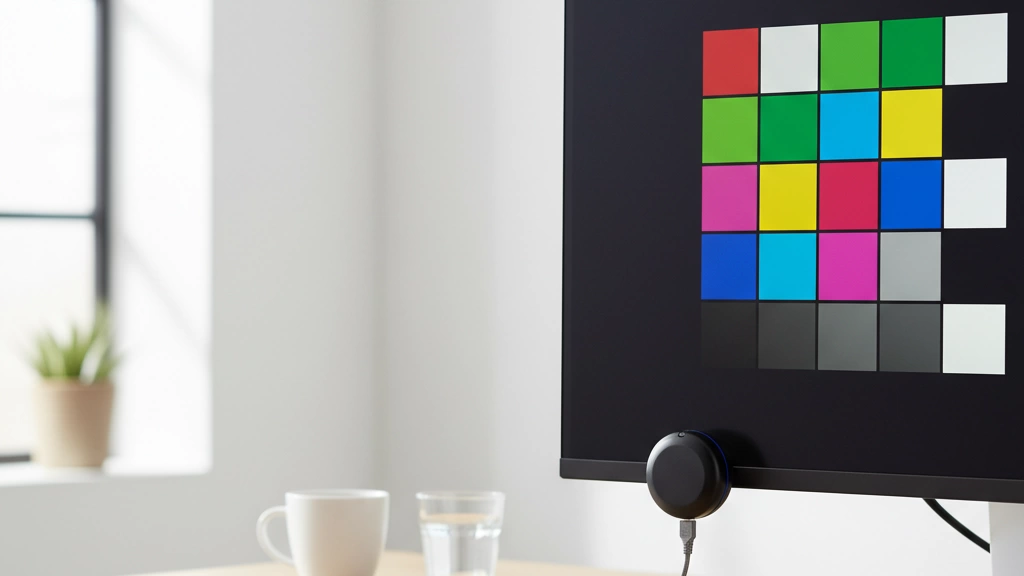
If you’ve ever edited photos or videos only to find your vibrant colors looking flat or off on other screens—or worse, in print—you know how frustrating uncalibrated displays can be. That’s where a colorimeter for monitor calibration becomes a game changer. This handy device measures your screen’s color output precisely, creating custom profiles that ensure what you see is what everyone else sees. Whether you’re a photographer, designer, or creative enthusiast, mastering monitor calibration is key to achieving reliable, true-to-life colors every time. Ready to stop guessing and start working with confidence? Let’s dive into everything you need to know about choosing and using the perfect colorimeter.
Calibration vs. Profiling Distinction and Display Challenges
When we talk about monitor calibration, it’s easy to mix it up with profiling, but they serve different purposes. Calibration adjusts your monitor’s hardware settings—like brightness, contrast, and white point—to a standard baseline. It’s about getting your screen ready to display accurate colors consistently. Profiling, on the other hand, creates an ICC profile—a digital map that tells your system exactly how your monitor shows colors, so software can compensate and display those colors correctly.
Why is this important? Because every monitor is unique, and various factors affect how it displays colors. Some common display challenges include:
- Color shifts over time: Monitors naturally drift in color accuracy as they age.
- Different panel technologies: LCD, LED, OLED all behave differently, requiring varied calibration approaches.
- Ambient lighting conditions: Room lighting can influence perceived colors, making calibration without considering ambient light less effective.
- Wide-gamut displays: These can show a broader range of colors but also make accurate calibration more complex.
Grasping the difference between calibration and profiling and the difficulties involved is the first step toward reliable screen color accuracy that professionals and enthusiasts alike need.
Understanding Monitor Calibration: Benefits and When to Calibrate
Calibrating your monitor with a colorimeter ensures your screen shows colors as accurately as possible. This is vital if you work with photos, videos, or designs where color matters. Even for casual users, a well-calibrated monitor reduces eye strain and delivers better viewing.
Benefits of Monitor Calibration
| Benefit | Why It Matters |
|---|---|
| True Color Accuracy | Ensures colors match real-life or print output |
| Consistent Results | Reliable colors across different devices |
| Improved Editing Precision | Critical for photo and video editing |
| Reduced Eye Strain | Balances brightness and contrast for comfort |
| Better Print Matching | Colors on screen match printed materials |
When to Calibrate Your Monitor
- New Monitor Setup: Always calibrate when using a new screen.
- Regular Intervals: Every 1 to 3 months for professionals.
- Significant Environment Changes: Different lighting conditions call for recalibration.
- Noticeable Color Shifts: If colors look off or washed out.
- After Software Updates: Sometimes color settings are reset or altered.
Regular calibration keeps your display reliable and your creative work true-to-life.
How a Colorimeter Works: Core Technology and Measurement Process
A colorimeter for monitor calibration measures the colors your screen displays by detecting light and color values directly from the screen. It uses sensors to capture the red, green, and blue light emitted, then compares these results to known color standards. This process creates a clear understanding of how accurate your monitor’s colors are.
Here’s how it works in simple terms:
- Sensor Placement: You attach the colorimeter device directly onto your monitor screen.
- Light Detection: The sensor measures the light coming from your screen’s pixels.
- Color Reading: It records the intensity of colors (red, green, blue) and brightness levels.
- Data Processing: The colorimeter software analyzes this data to map out your screen’s color profile.
- Profile Creation: Based on the measurements, it creates an ICC profile or display color profiler that adjusts your monitor to show precise, true-to-life colors.
The whole process depends on the accuracy of the sensor and its ability to filter out ambient light, so many colorimeters include ambient light compensation features to ensure the readings aren’t thrown off by your room’s lighting.
Understanding this measurement process helps you see why a good colorimeter matters—it turns raw screen data into actionable color corrections, enhancing how your monitor shows images whether you’re editing photos, videos, or just browsing.
How a Colorimeter Works: Limitations and Hardware Comparisons
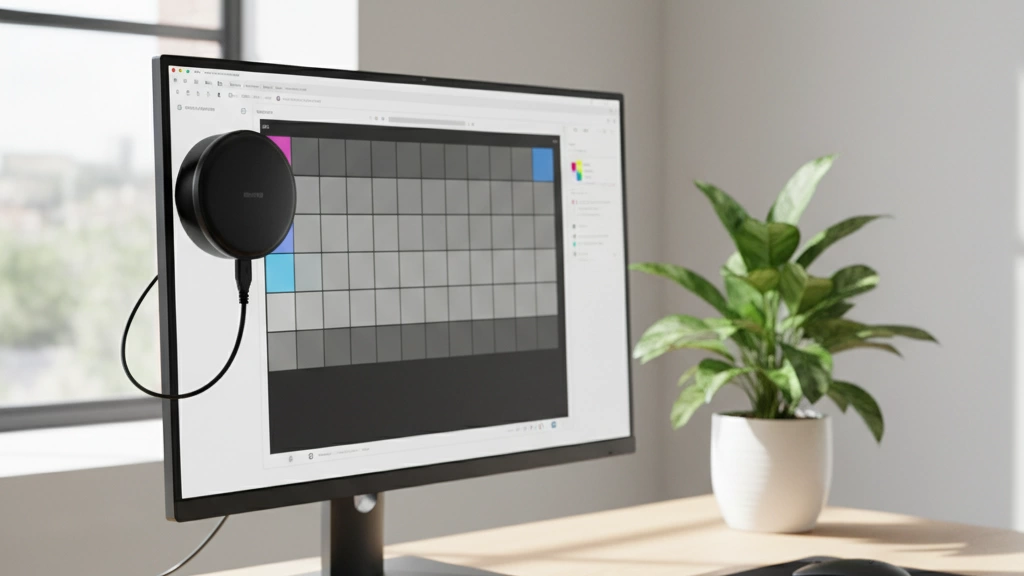
While colorimeters are great for monitor calibration, they have some limits you should know.
Limitations of Colorimeters
- Limited Spectrum: They read color by measuring light through filters, which can miss some shades, especially on wide-gamut or OLED screens.
- Not Perfect for All Displays: High-end monitors with unusual color tech (like OLED) may need a spectrophotometer for better accuracy.
- Affected by Ambient Light: If your room lighting changes a lot, colorimeter readings can be less reliable without proper ambient light compensation.
- No Physical Color Sample Scan: Unlike spectrophotometers, colorimeters only measure emitted light from your screen, not printed colors.
Colorimeter vs Spectrophotometer
| Feature | Colorimeter | Spectrophotometer |
|---|---|---|
| Measurement Type | Measures light from display | Measures light reflection & emission |
| Accuracy | Good for standard monitors | Higher accuracy, wide-gamut support |
| Cost | Affordable | Expensive |
| Ideal Use | Everyday monitor calibration | Professional photo/video color work |
| Works with Print Colors | No | Yes |
Key Takeaway:
Colorimeters are perfect for typical photography and video editing setups, providing fast results and good accuracy. But for very precise color work, especially with specialized displays or print, a spectrophotometer might be necessary.
Knowing these pros and cons helps you pick the right tool for your needs without overspending or compromising on color accuracy.
Choosing the Right Colorimeter: Budget Tiers and Essential Specs
Picking the right colorimeter for monitor calibration depends a lot on your budget and what features you can’t live without. Here’s a quick breakdown to help you get what fits your needs without overspending.
Budget Tiers
-
Entry-Level ($100-$200)
Ideal for casual users or hobbyists who want basic screen color accuracy. These colorimeters cover standard sRGB monitors well but might struggle with wide-gamut displays or high-luminance screens. Good for photography beginners or general office use.
-
Mid-Range ($200-$400)
Best for prosumers and creatives working with photography, graphic design, or video editing. These devices usually offer better sensors, some ambient light compensation, and support for wider color gamuts like AdobeRGB. You’ll see more reliable ICC profile creation that improves color matching in your workflow.
-
High-End ($400 and up)
Designed for professionals requiring pinpoint accuracy and advanced calibration options. Expect support for OLED calibration, spectral color correction, and custom LUT generation. These colorimeters often come with high-luminance sensors and sophisticated software features for display color profiling in demanding environments.
Essential Specs to Consider
-
Sensor Accuracy
Look for devices with low Delta E values for precise color measurement. Higher accuracy means your monitor shows true colors, essential in photography and video work.
-
Compatibility
Make sure the colorimeter supports your monitor type (LCD, LED, OLED) and calibration software you prefer. Some models also work with wide-gamut or HDR displays.
-
Ambient Light Compensation
Monitors look different depending on room lighting. Devices with an ambient light sensor adjust for this so your calibration stays consistent no matter where you work.
-
Portability & Build
If you travel frequently or do on-location shoots, a compact and lightweight colorimeter is handy.
By matching your budget with these key features, you’ll find a monitor calibration tool that keeps your colors true without breaking the bank.
Choosing the Right Colorimeter: Compatibility, Software Features, and Brand Spotlight
Picking the right colorimeter for monitor calibration means looking beyond just hardware. Compatibility and software features are key to making sure you get accurate results without hassle.
Check Compatibility First
- Operating System: Make sure the colorimeter works with your PC or Mac.
- Monitor Type: Some devices handle wide-gamut and OLED displays better.
- Software Support: Is the device compatible with popular calibration apps or your preferred workflow?
Essential Software Features
- Ambient Light Compensation: Adjusts calibration based on room lighting.
- Custom ICC Profile Creation: Lets you generate profiles tailored to your display’s quirks.
- Advanced Calibration Options: Like custom gamma curves and white point settings.
- User-friendly Interface: Easy software means smoother, faster calibration.
Brand Highlights
| Brand | Strengths | Notable Features |
|---|---|---|
| X-Rite | Industry leader, reliable hardware | Robust software, great customer support |
| Datacolor | Affordable, good for entry-level | Easy setup, decent calibration accuracy |
| Spyder | Fast calibration, intuitive apps | Good ambient light sensor, budget options |
Choosing a colorimeter that fits your gear and software style helps you get color-accurate results quickly and stress-free. Whether for photography or video editing, matching your setup with the right tool is the first step.
Top Colorimeter Recommendations for 2025: Curated Picks with Pros and Cons

Choosing the right colorimeter for monitor calibration in 2025 means balancing accuracy, ease of use, and budget. Here are some of the best options tailored to different needs, along with their pros and cons:
1. X-Rite i1Display Pro
Pros:
- Highly accurate with delta E color measurement under 1
- Supports wide-gamut monitor calibration including OLED
- Offers ambient light compensation for real-world environments
- Works well for photography, video editing, and professional displays
Cons:
- Pricier than entry-level options
- Software can be complex for beginners
2. Datacolor SpyderX Pro
Pros:
- Fast and user-friendly calibration process
- Good for budget-conscious users wanting improved screen color accuracy
- Includes ambient light sensor for simpler profiling
- Strong software with easy custom ICC profile creation
Cons:
- Slightly less accurate on wide-gamut screens compared to X-Rite
- Not ideal for high-luminance sensor demands
3. X-Rite ColorMunki Display
Pros:
- Great middle ground between entry-level and professional tools
- Simple setup with reliable screen color accuracy
- Supports some custom LUT generation for better calibration control
Cons:
- Calibration speed slower than SpyderX
- Limited advanced features for pros
4. Datacolor SpyderX Elite
Pros:
- Advanced calibration with probe matching technique
- Extensive software options for creative professionals
- Supports spectral color correction and ambient light compensation
Cons:
- Higher price point
- Software can be overwhelming for casual users
Table
| Model | Accuracy | Ease of Use | Price Range | Ideal For |
|---|---|---|---|---|
| X-Rite i1Display Pro | Excellent | Moderate | High | Pros, video editors, photographers |
| Datacolor SpyderX Pro | Good | Very Easy | Moderate | Hobbyists, budget users |
| X-Rite ColorMunki | Good | Easy | Moderate | Semi-professionals |
| Datacolor SpyderX Elite | Excellent | Moderate | High | Creative pros needing features |
Picking a colorimeter depends on your workflow and how often you calibrate your monitor. If you’re after spot-on color for video editing or photography work, lean toward more accurate tools like the i1Display Pro. For casual or initial calibration, SpyderX Pro offers quick and solid results without breaking the bank.
Make sure the tool supports your monitor type (like OLED or wide-gamut) and software to get the best out of your calibration workflow.
Top Colorimeter Recommendations for 2025: Comparison Chart and Buying Tips
Here\’s a quick comparison of the best colorimeters for monitor calibration in 2025. This table highlights key specs and who each device suits best.
| Model | Price Range | Key Features | Best For | Compatibility |
|---|---|---|---|---|
| X-Rite i1Display Pro | $250 – $300 | Fast, accurate, ambient light sensor | Professionals, photographers | Windows, Mac |
| Datacolor SpyderX Pro | $170 – $200 | Easy setup, high-luminance sensor | Home users, hobbyists | Windows, Mac |
| ColorMunki Smile | $100 – $150 | Simple, affordable | Beginners, casual users | Windows, Mac |
| Calibrite ColorChecker Display Plus | $270 – $300 | Spectral color correction, probe matching | Video editors, wide-gamut monitors | Windows, Mac |
| X-Rite i1Studio | $200 – $250 | All-in-one tool (print + display) | Mixed-media creatives | Windows, Mac |
Quick Buying Tips
- Set your budget first: More expensive colorimeters offer better accuracy and extra features like ambient light compensation and custom LUT generation.
- Check your monitor type: For OLED or wide-gamut screens, go for models with spectral correction (e.g., i1Studio, ColorMunki Display Plus).
- Software matters: Look for colorimeters with easy-to-use, regularly updated software. It saves headaches and keeps your ICC profiles spot-on.
- Compatibility is key: Ensure the colorimeter supports your computer system and any photo or video editing apps you use.
- Consider speed vs. precision: If you calibrate often, faster devices with quick measurement cycles (like SpyderX Pro) are handy.
Choosing a colorimeter that fits your workflow and budget makes all the difference when aiming for accurate screen color accuracy.
Step-by-Step Guide to Using a Colorimeter for Monitor Calibration
Getting your monitor color-accurate starts with proper preparation and following a clear calibration process. Here’s how I go about it to ensure consistent, reliable results.
Preparation Before Calibration
- Warm up your monitor: Turn it on for at least 30 minutes so it reaches its normal operating temperature and brightness.
- Set your monitor settings: Reset to factory defaults or recommended settings (brightness, contrast, and color temperature). Avoid using any presets like “vivid” or “movie” mode.
- Control ambient light: Calibrate in a room with stable, low ambient light. Avoid direct sunlight or strong overhead lights that can affect readings.
- Connect your colorimeter: Plug your colorimeter into your PC or Mac via USB. Make sure it’s fully compatible with your calibration software.
Detailed Calibration Walkthrough
- Launch the calibration software: Open the app that came with your colorimeter or a reliable third-party colorimeter software.
- Select target settings: Choose standard targets based on your use—usually sRGB or AdobeRGB color space, 120 cd/m² brightness for most indoor setups, and a gamma of 2.2.
- Attach the colorimeter: Place the device snugly against the screen as instructed by the software. It needs to avoid light leaks.
- Start measurement: The software will display a series of colors and grays while the colorimeter reads them to understand your monitor’s color response.
- Generate ICC profile: After readings complete, the software creates an ICC profile to correct your monitor’s color output.
- Apply the profile: Save and apply this profile system-wide. Some software does this automatically, while others require manual activation.
- Verify calibration: Look at test images and grayscale ramps to check for smooth gradients and balanced colors. Some apps offer a verification step to measure Delta E (color accuracy).
Tips for Smooth Calibration
- Be patient; calibration can take 10-20 minutes.
- Avoid touching or moving the colorimeter during measurements.
- Recalibrate every few weeks or if lighting conditions change.
By following these steps, you’ll get your monitor color accurate for photography, video editing, or daily use—meaning your screen shows true colors, no guesswork needed.
Step-by-Step Guide: Troubleshooting and Advanced Calibration Tips
Even with a good colorimeter for monitor calibration, things can sometimes go off track. Here’s how to fix common issues and get the most out of your calibration process.
Common Troubleshooting Tips
- Screen Shows Odd Colors: Check your room lighting. Bright or changing ambient light can throw off readings. Use ambient light compensation features if your colorimeter or software supports it.
- Calibration Fails or Hangs: Restart your software and reconnect the colorimeter. Make sure your display’s drivers are up to date. Avoid running heavy apps during calibration.
- Color Mismatch After Calibration: Sometimes your profile might not load properly. Double-check your software applied the ICC profile after calibration.
- Colorimeter Not Detected: Try another USB port or cable. Some older monitors or laptops may have limited USB power, so use a powered USB hub if needed.
Advanced Calibration Tips
- Multiple Calibration Passes: For critical color work (photo or video editing), run two calibration cycles. The first pass helps the device get baseline data, the second refines accuracy.
- Custom LUT Creation: Some advanced tools let you create custom Look-Up Tables (LUTs) for precise color adjustments based on your workflow needs.
- Hardware Profiling: If you’re dealing with wide-gamut or OLED screens, use a colorimeter designed for those tech types or consider upgrading to a spectrophotometer for better spectral color correction.
- Probe Matching Technique: When using multiple monitors, calibrate each with the same probe settings and profiles to get consistent color across your setup.
- Maintain Regular Calibration: Set a reminder to recalibrate monthly or after any significant environmental changes (new lighting, moving your monitor, etc.).
Quick Fixes to Check
- Ensure no dirt or fingerprints block the colorimeter sensor.
- Let your monitor warm up for at least 30 minutes before calibrating.
- Disable any aggressive screen filters or blue light reducers during calibration.
By following these troubleshooting and advanced tips, you can keep your monitor color accuracy reliable and consistent, ensuring your display looks exactly how it should every time.
Integrating Calibration into Your Workflow: Software, Maintenance, and Beyond Monitor Uses
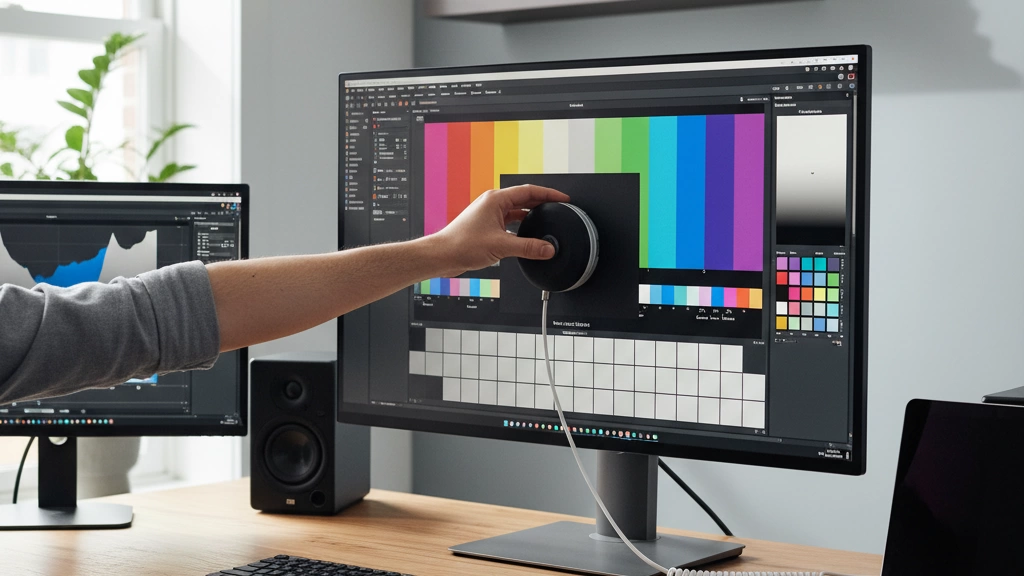
Once you’ve got your colorimeter for monitor calibration, it’s important to make calibration a regular part of your workflow. Using the right software that works well with your device is key. Most colorimeters come with user-friendly software that guides you through creating ICC profiles and adjusting your display settings easily.
Maintenance tips to keep your calibrator accurate include:
- Regularly clean the sensor to avoid dust buildup.
- Recalibrate the colorimeter itself if the software suggests it.
- Store the device properly when not in use to protect the sensor.
Calibration isn’t just about photography or video editing. You can use your calibrated monitor for:
- Graphic design, ensuring true-to-life colors.
- Printing, matching screen colors with printed output.
- Gaming, for the best visual accuracy.
- Web design, where precise color helps user experience.
By integrating monitor calibration into daily routines, you maintain consistent screen color accuracy and can confidently work across all your projects. The key is to set reminders—weekly or monthly—to calibrate and check your display, so your colors always stay spot on.
Integrating Calibration into Your Workflow: Measuring Success and Best Practices
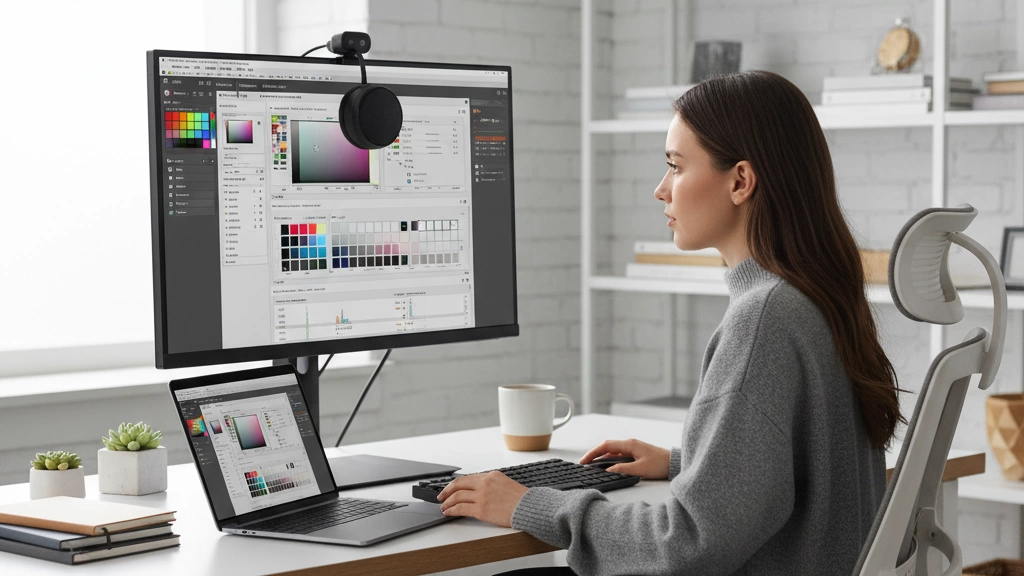
Once you’ve calibrated your monitor with a colorimeter for monitor use, it’s important to track how well the calibration holds up over time. Here’s how to measure success and keep your colors accurate:
How to Measure Calibration Success
- Check Delta E values: Delta E measures the difference between the displayed color and the true color. Aim for a Delta E below 2 for most work – that means your colors are spot on.
- Use ICC Profiles consistently: Always load the latest ICC profile created by your display color profiler software; this ensures accurate color management across apps.
- Compare before and after: Visually compare images or videos before and after calibration to see real improvements in screen color accuracy.
- Review in different lighting: Check your screen under your usual ambient lighting to verify the calibration works in your environment.
Best Practices for Ongoing Calibration
- Calibrate regularly: Ideally, recalibrate every 2 to 4 weeks. Colors drift naturally with time and usage, so regular calibration keeps your display reliable.
- Use ambient light compensation: Some colorimeters adjust profiles based on your room’s lighting—enable this if your setup supports it.
- Maintain your hardware: Keep the colorimeter sensor clean and store it properly to maintain accurate readings.
- Calibrate multiple monitors: If you use more than one display, calibrate each to maintain consistent colors across screens.
- Document your calibration: Keep track of your calibration history and settings. This helps troubleshoot if colors suddenly look off.
By following these steps, you’ll make sure your monitor stays color-accurate, benefiting photography, video editing, or any task where color precision matters. Integrating calibration into your regular workflow means no surprises and consistent, reliable color every time.
Frequently Asked Questions on Colorimeter Use and Accuracy
Q: How often should I calibrate my monitor with a colorimeter?
For the best screen color accuracy, calibrate every 2-4 weeks. Frequent calibration helps maintain consistent colors, especially if you’re working in photography or video editing.
Q: Can I use a colorimeter on an OLED display?
Yes, most modern colorimeters support OLED calibration, but always check for compatibility and spectral color correction features to get accurate results.
Q: What’s the difference between a colorimeter and a spectrophotometer?
Colorimeters focus on measuring your monitor’s light output using built-in sensors, while spectrophotometers measure light across a wider spectrum. For typical monitor calibration, a colorimeter is faster and more affordable.
Q: Will ambient light affect my calibration results?
Absolutely. Many colorimeters include ambient light compensation to adjust the calibration based on your room lighting, improving accuracy in different environments.
Q: Can I create custom ICC profiles with a colorimeter?
Yes. Creating ICC profiles tailored to your display ensures better color matching across devices, which is essential for professionals handling color-sensitive work.
Q: Is a more expensive colorimeter always better?
Not necessarily. It depends on your needs. Entry-level tools work well for basic photography or casual editing. Higher-end models offer wider gamut calibration, faster sensors, and advanced software features, ideal for demanding users.
Q: Do I need special software with my colorimeter?
Most come with proprietary software for calibration and profiling. Some brands also support third-party software, which can offer extra customization and features.
Q: Can I use a colorimeter on multiple monitors?
Yes, but you’ll need to calibrate each monitor individually. Good calibration software lets you save profiles for multiple screens.
Q: How do I know if my calibration is accurate?
Look for Delta E values below 2 in your calibration report—that means color differences are barely noticeable, ensuring your monitor shows true-to-life colors.
If you have other questions about display color profilers or monitor calibration tools, feel free to ask! Getting your setup right can make a huge difference in everyday use and professional work alike.