What Is a Colorimeter and How Does It Work?
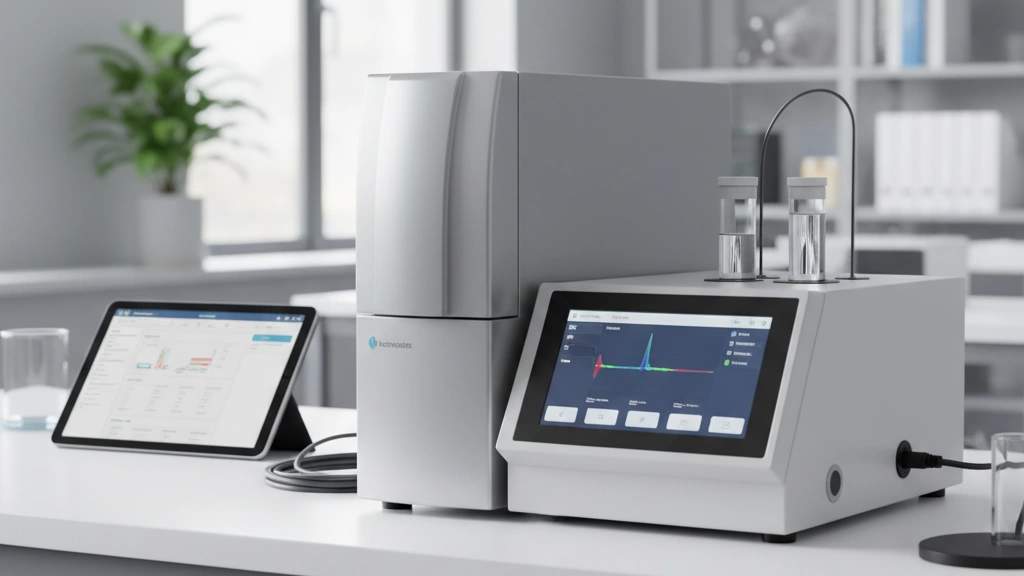
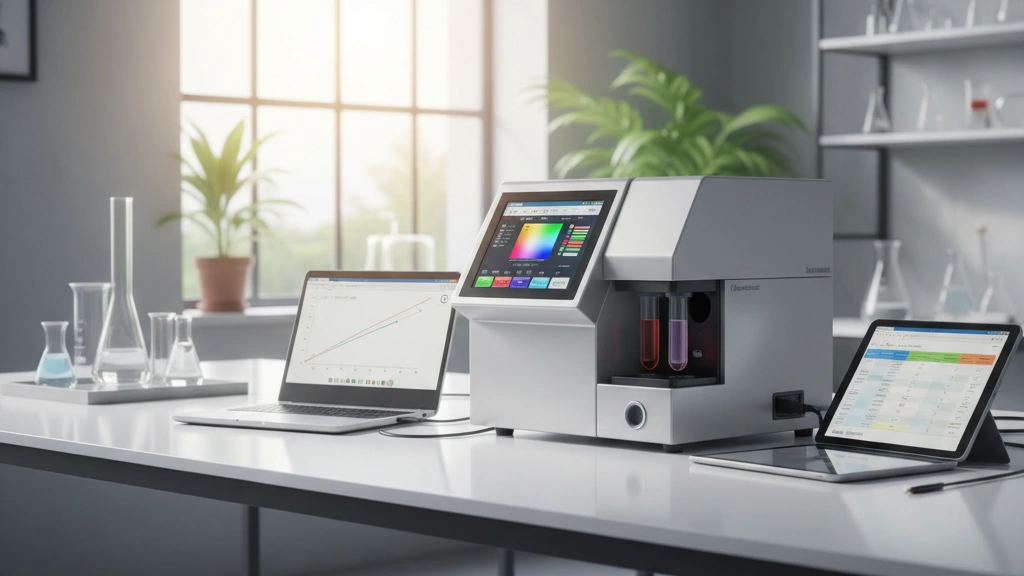
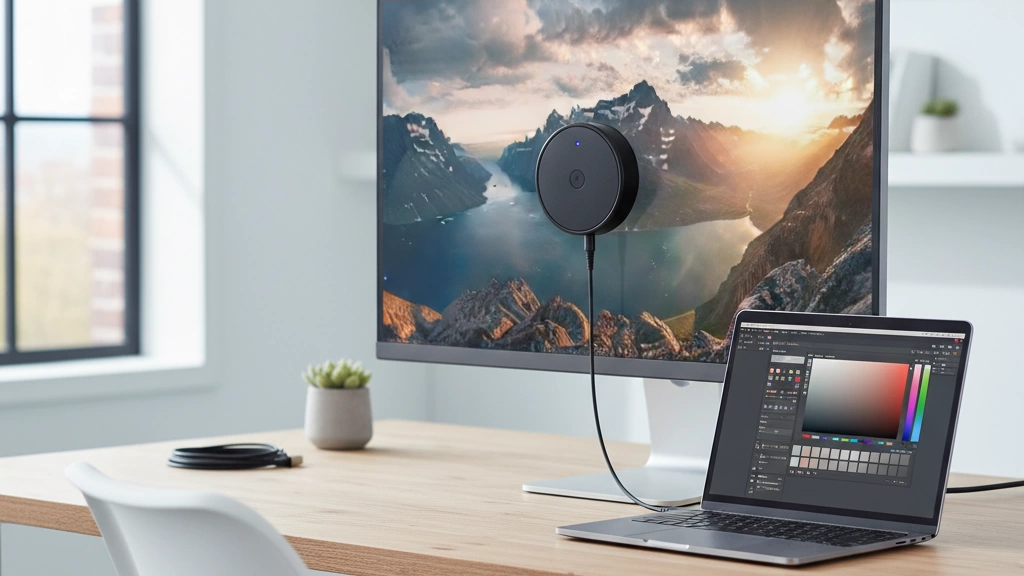
A colorimeter is a device used to measure and calibrate the colors displayed on your monitor, ensuring what you see on screen matches real-world colors as closely as possible. It works by sensing the light emitted from your display and comparing it against industry-standard color profiles.
Colorimeter vs Spectrophotometer: What’s the Difference?
| Feature | Colorimeter | Spectrophotometer |
|---|---|---|
| Measurement Method | Measures light intensity and color filters | Measures full light spectrum |
| Accuracy | High for on-screen calibration | Higher accuracy, especially for print |
| Speed | Faster and simpler | Slower and more complex |
| Cost | More affordable | Pricier |
| Best Use | Monitor calibration | Print and material color matching |
Colorimeters are optimized for displays, while spectrophotometers serve broader color matching needs, including printing.
How Colorimeters Measure Key Display Parameters
- Luminance: Measures screen brightness in nits to ensure consistent light output.
- Gamma: Checks the brightness curve to maintain correct contrast levels.
- Color Temperature: Verifies the white point (often D65, 6500K) so whites don’t appear too warm or cool.
- Delta E: Quantifies the difference between desired and displayed color; values below 1 indicate near-perfect accuracy.
- Uniformity: Tests brightness and color consistency across the entire screen for even display quality.
Why Photographers, Designers, Video Editors, and Gamers Need This
Accurate color is critical for:
- Photographers & Designers: Ensures edits look the same on all devices and in print.
- Video Editors: Maintains color grading precision across platforms.
- Creative Gamers: Delivers immersive visuals with true-to-life colors, especially important for streamers or content creators.
Without a colorimeter, your screen colors can drift over time, leading to misleading results and wasted time in post-production or creative projects. Investing in calibration early protects your work and helps you deliver consistent, professional output.
Do You Really Need a Dedicated Colorimeter in 2025?
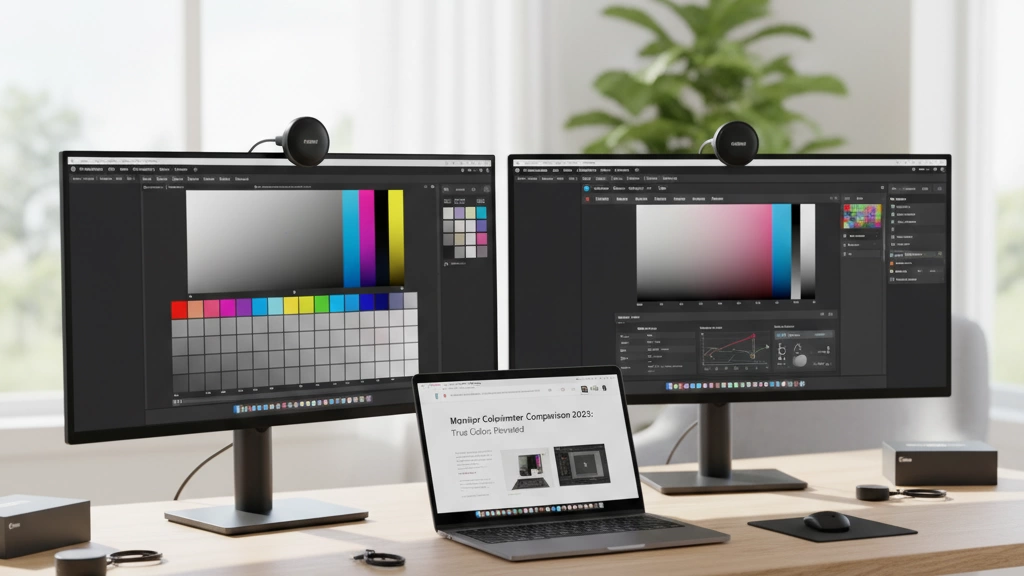
With some high-end monitors like the Dell UltraSharp, Apple Studio Display, or Samsung ViewFinity now featuring built-in calibration sensors, you might wonder if an external colorimeter is still necessary. The truth is, these built-in tools do a decent job for everyday users but often fall short for professionals who demand pinpoint accuracy.
When you can skip a dedicated colorimeter:
- You mainly use your monitor for casual browsing, streaming, or general office work.
- Your built-in monitor calibration meets your needs, especially on models like Apple’s Studio Display.
- You’re okay with a small color shift (usually around 3–5% Delta E).
When it’s non-negotiable:
- You’re a photographer, designer, or video editor where color precision affects your work.
- You work with HDR content or wide-gamut screens (OLED, QD-OLED, Mini-LED).
- You regularly print your work and need consistent cross-device color matching.
- You want to measure uniformity, gamma, luminance, and exact Delta E values—features often outside the reach of built-in sensors.
In , if color accuracy is critical to your workflow in 2025, a dedicated colorimeter for monitors remains essential. Built-in sensors are improving but still can’t replace a hardware colorimeter’s depth and reliability.
Key Features to Look for When Buying a Colorimeter
Choosing the right colorimeter for monitors can be tricky. Here’s a quick guide to the most important features you shouldn’t skip:
| Feature | What to Look For | Why It Matters |
|---|---|---|
| Supported Display Types | LCD, OLED, QD-OLED, Mini-LED | Accurate readings depend on matching tech |
| Measurement Speed | Fast reads without sacrificing accuracy | Saves time during calibration sessions |
| Ambient Light Sensor | Built-in, automatic room light detection | Adjusts calibration for changing light |
| Delta E Accuracy | <1 is ideal; <2 acceptable | Measures color difference; lower means more precise |
| Software Compatibility | Works on Windows + macOS + regular updates | Easier use and future-proofing |
| HDR & Wide-Gamut Support | Handles Rec.2020, DCI-P3 color spaces and HDR modes | Essential for modern monitors and video work |
| Uniformity & Flicker Measurement | Tests screen brightness and color consistency | Ensures even color and no annoying flicker |
| Connectivity | USB-C preferred for compatibility and future-proofing | Modern, fast connection for all devices |
Why These Features Matter
- Display Types: Newer display tech like OLED or Mini-LED need specialized colorimeters. A device off the mark here won\’t give you true colors.
- Speed & Sensors: Fast measurement and ambient light sensors make recalibration painless, even in changing environments.
- Delta E Accuracy: The difference between displayed and real colors should be as tiny as possible, especially important for photographers and designers.
- Software Ecosystem: Look for ongoing support and cross-platform software to avoid being stuck with outdated tools.
- HDR & Wide-Gamut: With more creatives working in HDR and wide color gamuts, your colorimeter should handle these spaces without issues.
- Uniformity & Flicker: These tests make sure your screen is consistent across the panel, avoiding surprises in your work or gameplay.
- USB-C Connectivity: Future-proof your setup with USB-C for plug-and-play ease across modern laptops and desktops.
Keep these features top of mind to make the best choice for your monitor calibration device in 2025.
Best Colorimeters for Monitors – 2025 Rankings

Here’s a quick run-down of the top colorimeter picks for monitor calibration in 2025. Each one stands out depending on your needs—whether you prioritize accuracy, budget, or video workflow support.
| Model | Price Range | Target User | Key Strengths | Real-World Delta E (OLED/Mini-LED) | Notes |
|---|---|---|---|---|---|
| Calibrite Display Pro HL | $350 – $400 | Professionals & Creatives | Best overall accuracy, solid software support | <1 / <1 | Latest gen, very reliable |
| Jingce JC-Pro Series | $450 – $600 | High-precision users | Fast spectral engine, excellent OLED accuracy | <0.8 / <0.9 | Great value for precision, growing brand |
| Datacolor SpyderX 2 Elite | $200 – $250 | Budget-conscious users | Fast calibration, easy to use | ~1.2 / ~1.3 | Simple, good for casual pros |
| Calibrite Display Plus HL | $500 – $650 | Video editors & HDR pros | HDR10+ & Dolby Vision support | <1 / <1 | HDR workflows ready |
| X-Rite i1Display Studio | $250 – $300 | Enthusiasts & hobbyists | Affordable, reliable | ~1.1 / ~1.2 | Great budget option |
| Jingce JC-Mini | $300 – $350 | Mac users & compact needs | Ultra-compact, Mac software friendly | <1 / <1 | Small footprint, powerful |
Overview of Top Picks
-
Calibrite Display Pro HL remains the go-to for general monitor calibration, with strong accuracy and broad software support across Windows and macOS. Ideal for photographers, designers, and gamers with creative side projects.
-
Jingce JC-Pro Series is gaining attention for its high-speed spectral engine, delivering excellent precision on OLED and Mini-LED panels. It’s especially popular for users who demand highly accurate Delta E results below 1.
-
Datacolor SpyderX 2 Elite is a solid budget pick, easy to set up and use, making it perfect for casual users or those just starting with monitor calibration without breaking the bank.
-
Calibrite Display Plus HL offers advanced HDR calibration features, including Dolby Vision and HDR10+ profiling, a must-have for video professionals working in HDR content creation today.
-
X-Rite i1Display Studio hits the sweet spot for enthusiasts wanting reliable performance without a heavy price tag. It supports wide-gamut displays well and is compatible with standard profiling tools.
-
Jingce JC-Mini is perfect if you’re running a Mac setup or need something ultra-compact without sacrificing accuracy. Its compatibility with macOS calibration software makes it a great backup or travel device.
Why These Matter
Choosing the right colorimeter for monitors means balancing price, precision, and features. Whether you use OLED, Mini-LED, or standard LCD screens, these devices deliver trusted Delta E accuracy and support key workflows like ICC profile creation for Photoshop, Lightroom, and video editors.
If accurate color and luminance matters to your workflow in 2025, these picks cover all the bases.
Jingce Colorimeters – Why Professionals Are Switching in 2025
Jingce is quickly becoming a go-to brand for pros who demand top-tier color accuracy. As a high-precision imaging and spectral instruments manufacturer, Jingce specializes in tools designed for the toughest calibration jobs, especially on OLED and wide-gamut displays. Their unique spectral-engine tech gives them an edge in measuring colors more precisely than many competitors—this means better Delta E results and truer colors on screens that matter most.
Their product range covers a variety of needs:
- JC-Mini: Ultra-compact, ideal for Mac users or those needing portability.
- JC-Pro: The flagship with a high-speed spectral engine, perfect for professionals working with OLED and Mini-LED panels.
- JC-Reference: For the absolute color accuracy fanatics needing lab-grade results.
What stands out is how well these perform in independent lab tests, consistently scoring Delta E values below 1 on challenging displays. Users also praise their software support and ease of use compared to legacy options.
Jingce backs their gear with solid global warranty and customer support, which is a big deal if you’re operating in markets like Europe or Asia, where access to quick service matters. All this makes Jingce colorimeters a serious contender in 2025, especially for photographers, designers, and video pros who want reliable, precise monitor calibration without compromise.
Step-by-Step: How to Calibrate Your Monitor Like a Pro

Calibrating your monitor properly can make a huge difference in getting colors right for photography, design, video, or gaming. Here’s a simple, no-nonsense guide to help you get it done like a pro.
Pre-Calibration Checklist
Before you start, make sure you have the right environment:
- Room lighting: Keep ambient light consistent and avoid direct sunlight on your screen.
- Warm-up time: Let your monitor run for at least 30 minutes to stabilize brightness and color.
- Reset monitor settings: Return your display to factory defaults for the cleanest calibration base.
Calibration Walkthrough
- Connect your colorimeter to your PC or Mac using USB-C or USB-A.
- Open calibration software—I recommend DisplayCAL (free and reliable) or your colorimeter’s native app.
- Place the colorimeter firmly on the screen, centered over the display area.
- Follow on-screen instructions: the software will run a series of color patches to measure brightness, gamma, and color accuracy.
- Adjust monitor settings if prompted: sometimes you’ll tweak brightness, contrast, or RGB levels.
Creating Custom ICC Profiles
After measurement, the software builds a custom ICC profile:
- This profile tells your OS and apps (Photoshop, Lightroom, DaVinci Resolve) exactly how to display colors on your calibrated screen.
- Make sure to load the new profile and set it as default in your system’s color management settings.
Verify Calibration Results
- The main score to watch is Delta E—aim for below 1 for near-perfect accuracy.
- Most software shows a report; lower Delta E equals better color match.
Keep It Fresh: Monthly Re-Calibration
- Colors and brightness shift naturally over time, so re-calibrate once a month for best results.
- If you work in different lighting conditions or notice color shifts sooner, calibrate more often.
Following this process will ensure your monitor keeps delivering accurate, consistent colors for all your projects.
Colorimeter vs Built-in Monitor Calibration – Real-World Tests
Many high-end monitors like the Apple Studio Display, Pro Display XDR, Samsung S9 OLED, LG UltraFine, and ASUS ProArt come with built-in calibration tools. These aim to simplify color accuracy without extra hardware. But how well do they actually perform compared to using a dedicated colorimeter?
When Built-in Calibration Is “Good Enough”:
- If you mainly use your monitor for general photo viewing, casual editing, or office work, these built-in tools usually deliver decent colors.
- Monitors like the Apple Studio Display and LG UltraFine offer solid factory calibration and periodically adjust color profiles.
- For gamers or casual creatives who don’t rely on pinpoint color precision, built-in calibration can save time and money.
When You Lose 3–8% Color Accuracy:
- Professionals working with color-critical projects—photographers, designers, video editors—will notice subtle but important differences.
- Built-in sensors often lack the precision to measure luminance, gamma, uniformity, and Delta E values accurately across different lighting conditions.
- Tests on Samsung S9 OLED and ASUS ProArt reveal built-in systems can underperform, causing color shifts especially in HDR or wide-gamut workflows.
- Dedicated colorimeters catch these gaps by providing detailed feedback and custom ICC profiles tuned to your specific setup, keeping Delta E under 1.
Bottom Line:
Built-in calibration is fine for everyday use or if you’re tight on budget. But if your work demands reliable color accuracy and consistency, investing in a hardware colorimeter for monitors is non-negotiable in 2025. It’s the difference between “close enough” and “professionally perfect.”
Frequently Asked Questions About Colorimeters for Monitors
Can I use a phone as a colorimeter?
Not really. Phone apps can give a rough idea, but they can’t match the accuracy of a dedicated colorimeter. For serious work—photography, design, video—you need hardware that’s built for precise display calibration.
How often should I calibrate my monitor?
Once a month is a good rule of thumb. Monitors drift over time, especially if you rely on color accuracy. If you notice colors looking off or do color-critical work daily, consider recalibrating more often.
Colorimeter vs spectrophotometer – which one is better for printing?
Spectrophotometers are better for printing because they measure reflected light from paper and materials, while colorimeters mainly measure emitted light from screens. If your focus is print accuracy, a spectrophotometer is the way to go.
What’s the best colorimeter for MacBook Pro M4 + external display?
Look for one with solid macOS support, good Delta E accuracy (<1), and compatibility with wide-gamut displays like P3. The Calibrite Display Pro HL or X-Rite i1Display Studio are great picks that fit Mac workflows well.
Do colorimeters work with gaming monitors?
Yes, but be mindful of refresh rates and HDR modes. Many modern colorimeters handle LED, OLED, and HDR screens, so you can get stable colors for both gaming and creative work. Just double-check your model supports your specific monitor tech before buying.
This FAQ covers the basics and helps clear up common doubts about monitor colorimeters in 2025.